


The All-in-One Rental Solution
Aptean Rental gives your company all the important features for renting your agricultural and construction machinery. This module uses your data from Microsoft Dynamics 365 Business Central and expands it with additional (service-)item attributes.
Of course, this module is also compatible with other modules. Just connect with
Aptean RentBoard to easily manage rental matters.
Note
This product is still in development. For this reason, some functions might not be available yet. Screenshots can differ from the actual view in your system. The documentation of certain functions might not be completed yet.
Structure and Lookup
The software documentation is divided into the areas Rental and Sub-Rent which reflect a logical rent process:
The Rental area covers the following topics:
- Setup covers all the essential topics for a working rental module. This category covers the following chapters:
- Link to Other Modules
- Base Setup
- Rent Class Types
- Rent Classes/Rent Packages
- Rent Objects
- Resources
- Rental Order Types
- Email Setup
- Contracts covers all topics related to rent quotes, rent contracts and basic invoicing data. This category covers the following chapters:
- Disposition describes the actions that directly follow contract matters. This category covers the following chapters:
- Rent Procedures covers the actual rent activity. This category covers the following chapters:
- Checklists for Rent Orders
- Working with Deliveries/Returns
- Repairs, Replacement, Consumption
- Damage Documentation
- Deposit
- Rent Break
- Invoicing is the last step in the rental activity and covers:
The Sub-Rent area covers the following topics:
- Setup covers all the essential topics for a working rental module. This category covers the following chapters:
- Sub-Rent Contracts covers all topics related to sub-rent requests, sub-rent contracts and basic invoicing data. This category covers the following chapters:
- Sub-Rent Processing covers the actual sub-rent activity. This category covers the following chapters:
- Invoicing is the last step in the sub-rent activity and covers the chapter:
You can also use the overview on the left side to look up and quickly open certain topics. If you are looking for a certain word or phrase, use the search field in the upper-right of the header:

Rental Role Center
You can find useful information and shortcuts in the role center that give you quick access to frequently used functions.
The role center of rental is divided into the following sections:
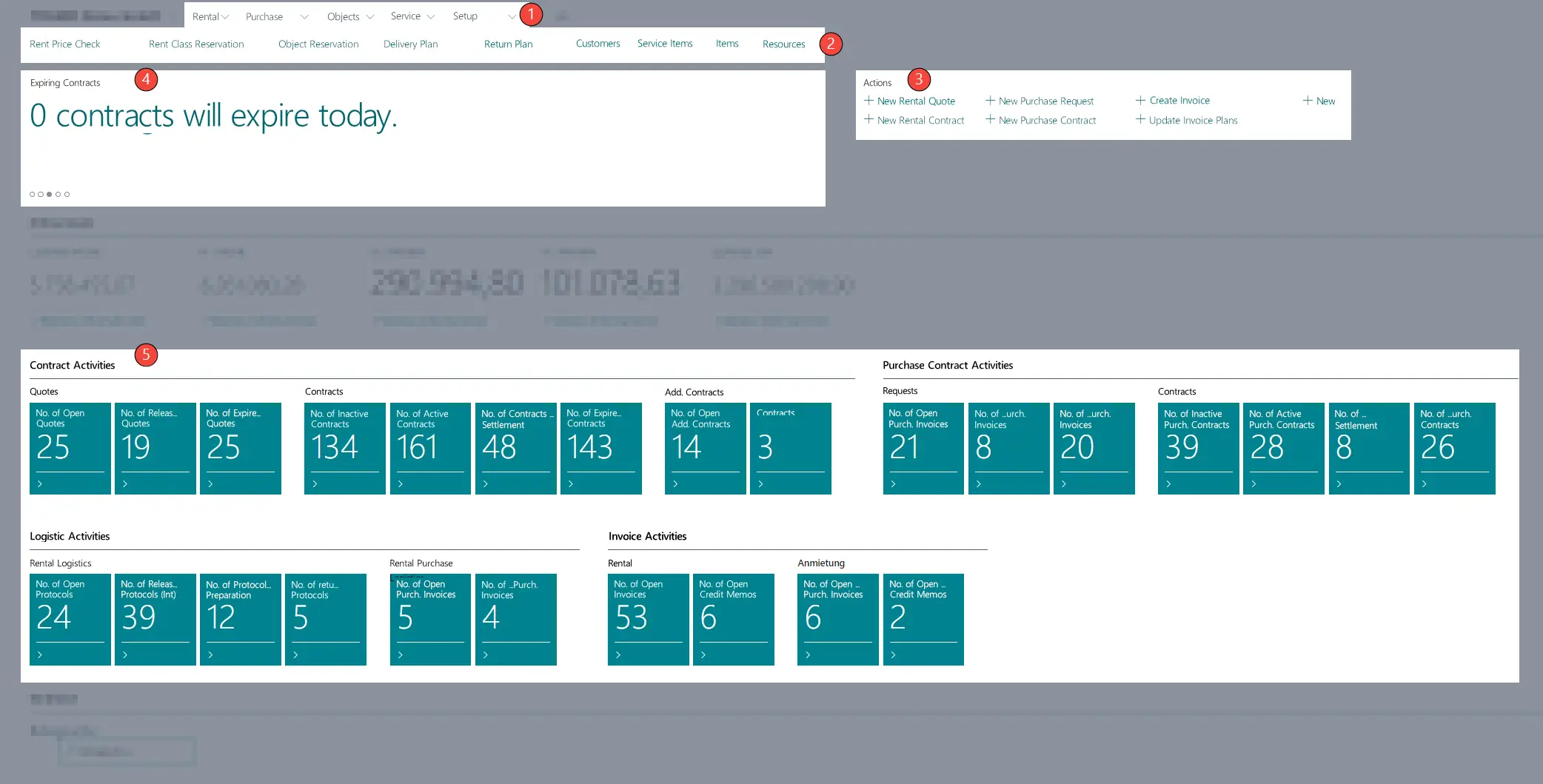
Note
Depending on the size of your monitor, the sections might be displayed differently.
Note
To view the sections of sub-rent, you have to first activate the sub-rent function on the Rent Setup page.
Note
You can change the number of records to be viewed in the No. of Last Records Viewed To Be Saved field on the
Rent Setup page.
You can also mark every record in rental as a favorite by clicking the button with the three dots. If records have been marked as a favorite, they will be displayed in the Rental Favorites list.
| Numbering | Section Label | Section Description |
|---|---|---|
| 1 | Panes | The Panes section contains the Rental, Objects, Service and Setup menus. By using these menu items, you can access pages such as Rent Contracts or Service Item without needing to use the quick search first. |
| 2 | Embedded | The Embedded section features fixed pages which open up directly in a new window without the need to use the quick search. |
| 3 | Actions | The Actions section features fixed actions which open up directly in a new window. For example, by using the New Rent Quote action, a new rent quote opens directly without the need to search for the Rent Quotes page via the quick search. |
| 4 | Headline | You can view useful information like performance overviews in the Headline section. |
| 5 | Cues | The Cues section features different tiles which give you an easy overview of information like the number of open rent quotes. If you click one of the tiles, a page with an already applied filter opens. For example, if you select the No. of Inactive Contracts tile, the Rent Contracts page opens up and is already filtered in the Contract Status column by Open or Inactive. The cues are divided into the topics Contract Activities and Sub-Rent Activities. The Logistic Activities and Invoice Activities cues are also divided into rent documents and sub-rent documents. The Insights cues include the Last Rent Records Viewed and Rental Favorites lists. The Last Rent Records Viewed list displays your last viewed rent records. |
Defining Headlines for Individual Users
You can set up which message should be displayed in the Headline pane for every individual user. To do so, proceed as follows:
- Use the quick search (ALT+Q) to find the Rent Headline Setup page.
- The Rent Headline Setup page is displayed.
- In the Username column, select the user for whom you want to specify the headlines.
- Select or clear the checkbox of the desired headlines. By default, all headlines are activated.
- Close the Rent Headline Setup page.
In the next chapters you will learn everything important about the synergy with other rental products of TRASER Software GmbH.