


Machine Registration
With the Trade-In app, you record machines directly on site at the customer's premises. You enter machine data, equipment, damage and pictures and then upload the machine to Aptean MachinePortalOnline. There, the machine is immediately available for further processing, e.g., for valuation or marketing on online marketplaces. This chapter is divided into the following sections:
Recording a New Machine
Note
In CategoryCheckPro, rarely used categories and subcategories can be hidden. Hidden categories and subcategories are initially not displayed during selection, but remain fully functional. If you cannot find a category or subcategory, it may be hidden. You can recognize hidden categories by the crossed-out eye icon in the upper-right corner. Proceed as follows to select a hidden category:
- Tap the crossed-out eye icon in the upper-right corner.
- Switch to the view of hidden categories.
- Select the desired category.
You select hidden subcategories in the same way.
Proceed as follows to record a new machine:
- On the home screen, tap the plus icon in the lower-right corner.
- Use the Machine category button to select the category of the machine, e.g., Tractor.
- Use the Machine subcategory button to select the subcategory.
- The corresponding attributes and equipment features are loaded. Fill in the information according to the following table:
| Field | Description |
|---|---|
| Manufacturer | Select the manufacturer of the machine. |
| Model | Enter the model name of the machine. |
| Customer | If required, enter the name of the customer, e.g., for a commission machine. |
| Power (HP) | Enter the engine power of the machine in HP. |
| Year of manufacturing | Enter the year of manufacture of the machine. |
| Operating hours | Enter the operating hours of the machine. |
| Hectares | Enter the number of hectares of the machine. |
| Serial no. | Enter the serial number of the machine. |
| Commission | Activate this toggle switch if you sell the machine on behalf of another customer. |
| Condition | Select the condition of the machine, e.g., Used machine. |
| Valuation Suggestion | Enter the price that you suggest for the machine. In the Valuation Note text field, you can enter a justification for your valuation, e.g., Slight signs of wear. The suggestion is displayed in Aptean MachinePortalOnline as a Machine Valuation. |
| Description (online market) | Enter details about the machine that are not included in the equipment list. The text is used for marketing on online marketplaces. |
| Internal Notes | Enter information that is intended exclusively for internal communication. |
| Equipment | Use this option to record the equipment features of the machine. More information on this can be found here. |
| Pictures | Use this option to add pictures of the machine. More information on this can be found here. |
- Tap the check mark icon in the upper-right corner to save the machine.
The machine is saved locally on your device and is displayed in the machine list. Then upload the machine to Aptean MachinePortalOnline. More information on this can be found here.
Tip
To cancel the recording, tap the X icon in the upper-left corner. Your entries are discarded.
Recording Equipment Features
The equipment list contains all equipment features that a machine of the selected category can have, e.g., Three-point hitch, Drive or Work lights. For each equipment feature, you can also add comments and pictures.
Note
Equipment features that have been newly created in CategoryCheckPro are only available after updating the structural data. They are only displayed for newly recorded machines. Machines that have already been recorded or copied do not contain the new equipment features.
Proceed as follows to record equipment features:
- On the New machine page, tap Equipment. For information on recording a new machine, see here.
- Record the equipment features of the machine. Recorded equipment features are marked with a green check mark.
- Optional Tap the comment icon of an equipment feature to add a comment.
- Optional Tap the camera icon of an equipment feature to add a picture.
The equipment features are recorded.
Tip
To find an equipment feature quickly, use the search in the equipment list. To reset all entries for an equipment feature, swipe the equipment feature to the left and tap Reset.
Documenting Damaged Equipment
If an equipment feature is present but damaged, mark it as damaged. You can additionally document the damage with a comment and a photo. After the upload, the equipment feature is displayed as damaged in Aptean MachinePortalOnline. The comment is transferred as an internal note and the photo is attached to the equipment feature.
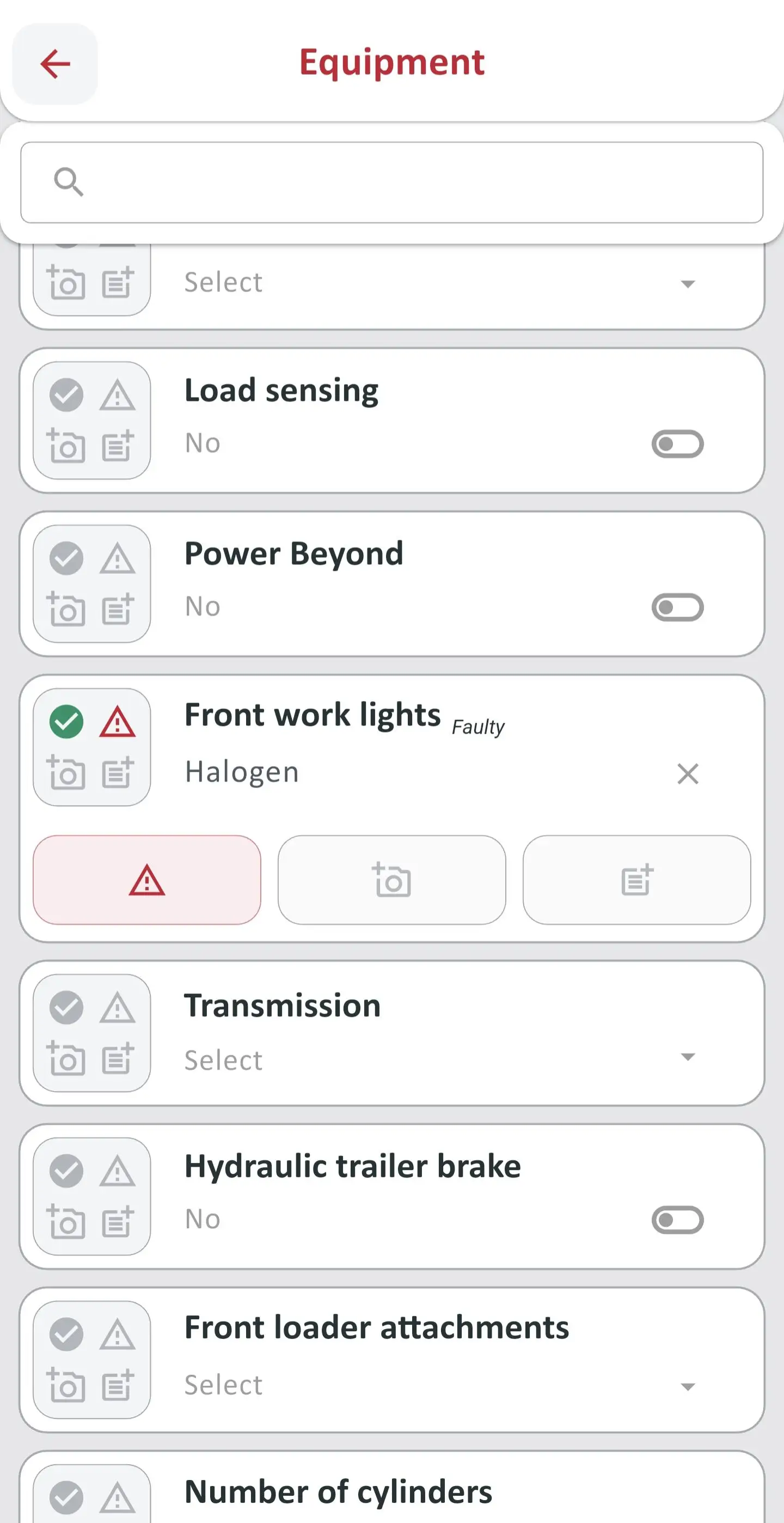
Proceed as follows to document damage:
- In the equipment list, record the affected equipment feature, e.g., Work lights.
- Tap the warning triangle icon of the equipment feature. The icon is highlighted in red.
- Use the note icon to enter a comment on the damage, e.g., Damaged by stone chip.
- Tap Save.
- Tap the camera icon of the equipment feature.
- Add pictures of the damage.
The damage is documented.
Adding and Managing Pictures
In addition to pictures of individual equipment features, you can add general pictures of the machine, e.g., for marketing on online marketplaces. The first picture is automatically used as the title image of the machine in the app, in Aptean MachinePortalOnline and on the online marketplaces. Proceed as follows to add pictures:
- On the New machine page, tap Pictures. For information on recording a new machine, see here.
- Tap the add photo icon in the upper-right corner.
- Tap Take picture to photograph the machine directly.
or
Tap Picture gallery to upload photos from your gallery.
The pictures are added.
Tip
Proceed as follows to delete a picture:
- On the Pictures page, swipe the picture to the left.
- Tap Delete.
- The picture is deleted.
To delete all pictures of a machine at once, tap Delete all pictures at the bottom of the Pictures page.
Uploading Machines
Newly recorded machines are initially only saved locally on your device. They are only available in Aptean MachinePortalOnline after the upload. You can upload individual machines or all machines that have not yet been uploaded. The cloud icon in the machine list shows whether a machine has already been uploaded.
After the upload, you can find the machines in Aptean MachinePortalOnline under Machines > All Machines. The machine data, the valuation suggestion, the equipment features including damage and comments as well as all pictures are transferred. For more information, see the Machines chapter.
Uploading a Single Machine
Proceed as follows to upload a single machine:
- On the home screen, tap the cloud icon of the desired machine.
- In the dialog, tap Upload.
The machine was uploaded to Aptean MachinePortalOnline. You can now open the machine via the All Machines page in Microsoft Dynamics 365 Business Central.
Uploading All Machines
Proceed as follows to upload all machines:
- On the home screen, tap the sync icon in the upper-right corner.
- In the dialog, tap Upload now.
The machines were uploaded to Aptean MachinePortalOnline. You can now open the machines via the All Machines page in Microsoft Dynamics 365 Business Central.