


Login
To enable the app to exchange data with Aptean MachinePortalOnline, you must connect it to your Aptean MachinePortalOnline environment once. This chapter describes the setup from the first start of the app to the first update of the structural data. The chapter is divided into the following sections:
- Selecting the Language
- Setting Up a Direct Connection to Aptean MachinePortalOnline
- Setting Up a Connection via the Middleware
- Updating Structural Data
- Contacting Support
Selecting the Language
When you start the app for the first time, you specify the language in which the app is displayed. This prompt is only displayed once after the installation.
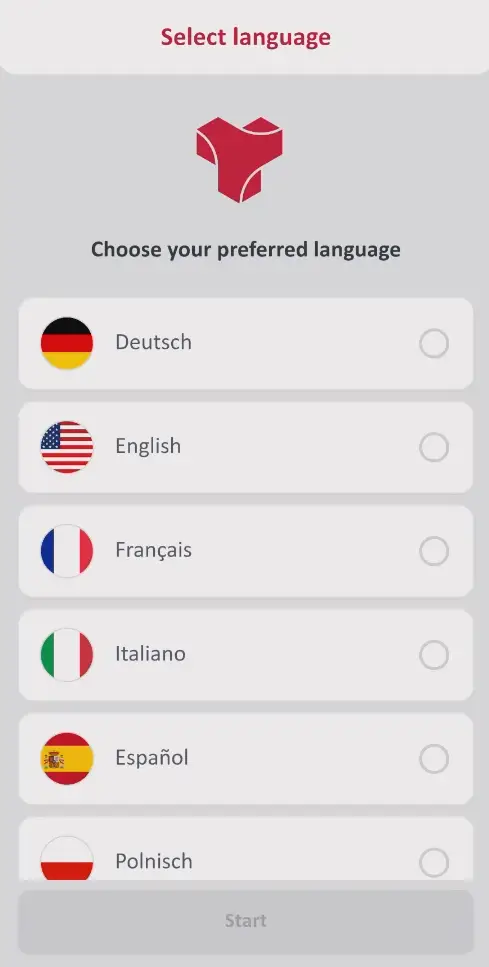
Proceed as follows to select the language:
- Open the Trade-In app on your mobile device.
- Select your preferred language.
- Tap Start.
The language is set. The connection settings are then displayed.
Tip
To change the language later, tap the menu icon in the upper-left corner of the machine list and select the desired language.
Setting Up a Direct Connection to Aptean MachinePortalOnline
There are two ways to synchronize the app with Aptean MachinePortalOnline: directly or via the middleware. Which option applies to you depends on your license. In most cases, you connect the app directly via the MPO settings tab. For this, you need the following data, which you receive from your contact person at TRASER Software GmbH:
- URL of your Aptean MachinePortalOnline environment
- Tenant
- User name and Password (the same login details that you use to sign in to the MPO Web Client)
Important
In the Tenant field, enter the name of your company, not its display name. The app only compares this name with your Aptean MachinePortalOnline environment. If the value differs, no connection can be established. You receive the name of your company from your contact person at TRASER Software GmbH.
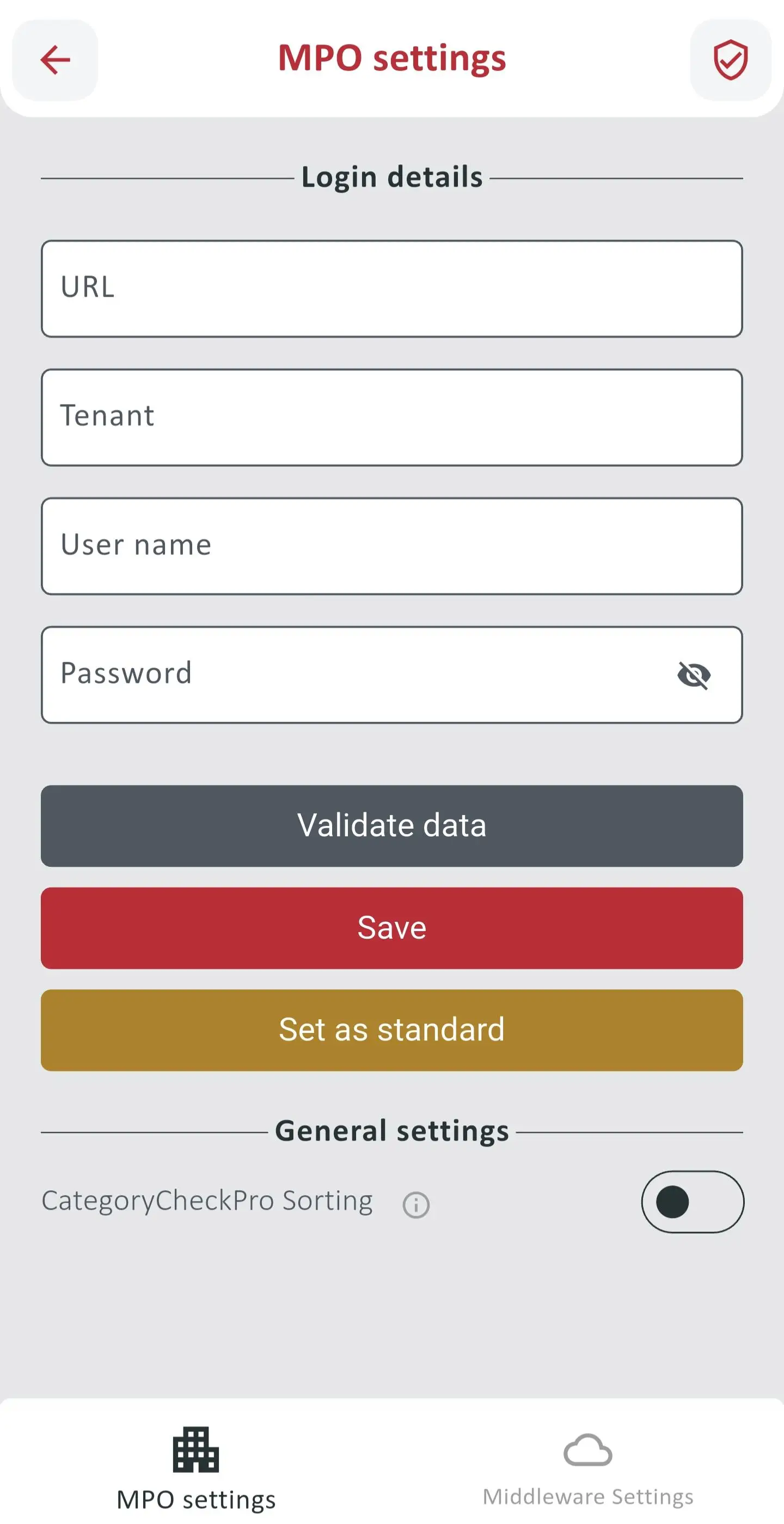
Proceed as follows to set up the connection:
- Open the Trade-In app on your mobile device.
- Tap the MPO settings tab at the bottom of the screen.
- Tap Set as standard. The app now uses the direct connection.
- Enter the URL of your Aptean MachinePortalOnline environment in the URL field.
- Enter the name of your company in the Tenant field.
- Enter your user name in the User name field.
- Enter your password in the Password field.
- Tap Validate data. The app checks whether your login details match the data in your Aptean MachinePortalOnline environment.
- Tap Save so that you only have to enter the login details once.
- Optional In the General settings area, activate the CategoryCheckPro Sorting toggle switch.
Note
You can only use the CategoryCheckPro Sorting setting if the CategoryCheckPro module is activated for your Aptean MachinePortalOnline environment. You cannot activate the module yourself. To have it activated, contact your contact person at TRASER Software GmbH.
The app is connected to your Aptean MachinePortalOnline environment. Then update the structural data.
Tip
You can open the connection settings again at any time. To do so, tap the gear icon in the upper-right corner of the machine list.
Setting Up a Connection via the Middleware
If your license provides for synchronization via the middleware, you connect the app via the Middleware Settings tab. As soon as your user account has been created, you receive an email with your login details. The link in the email transfers the login details to the app automatically.
Note
Open the email on the mobile device on which the Trade-In app is installed. Only then can the link transfer the login details to the app.
Proceed as follows to set up the connection:
- Open the email with your login details on your mobile device.
- Tap the link in the email. The User ID, Database name, Email, User name and Password fields on the Middleware Settings tab are filled in automatically.
- Tap Set as standard. A green check mark is displayed on the Middleware Settings tab. The app now uses the connection via the middleware.
- Tap Validate data. The app checks whether your login details match the data in the database.
- Tap Save.
- The app is connected via the middleware.
Tip
You can also enter the login details manually. To do so, tap the Middleware Settings tab at the bottom of the screen and transfer the data from the email to the corresponding fields.
The following options are only available for a connection via the middleware.
Protecting Your Account with a PIN
With a PIN, you additionally protect your account against unauthorized access. Proceed as follows to set a PIN:
- On the Middleware Settings tab, tap the lock icon in the upper-right corner.
- Set a PIN.
- Your account is protected with a PIN.
Changing the Password
You can replace the password from the email with your own password. Proceed as follows to change your password:
- On the Middleware Settings tab, tap Change password. Your current login details are displayed.
- Enter your new password in the New password field.
- Tap the Change password button.
- Your password was changed.
Updating Structural Data
Important
Stay on the page during the update. If you leave the page, the update is canceled and does not continue in the background. Also make sure that you have a stable internet connection. An unstable or interrupted connection can cause the update of the structural data to fail.
By default, the app contains structural data. This includes categories, subcategories, attributes and attribute options, including their translations. This data does not necessarily match the structural data of your Aptean MachinePortalOnline environment. Therefore, update the structural data immediately after the first login so that the app works with the same data as your Aptean MachinePortalOnline environment. The app only downloads the translations of the languages that are set up for the app in Aptean MachinePortalOnline.
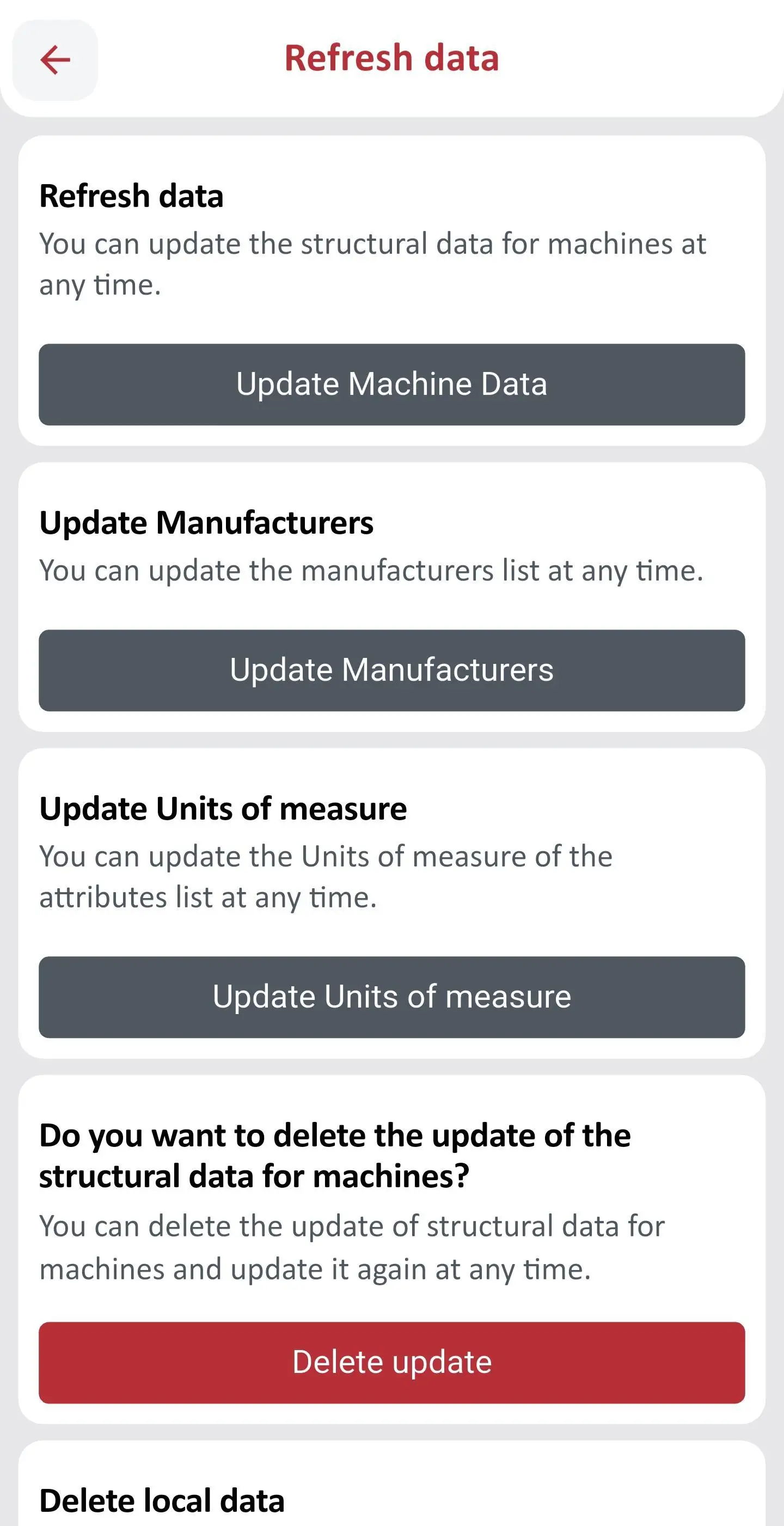
Proceed as follows to update the structural data:
- On the home screen, tap the menu icon in the upper-left corner.
- Tap Refresh data.
- Then tap Update Machine Data.
- Then tap Update Manufacturers.
- Then tap Update Units of measure.
The structural data is downloaded.
Tip
You do not need to update the structural data every time you start the app. Update the structural data regularly and whenever changes have been made in CategoryCheckPro. For information on how to apply changes from CategoryCheckPro to the app, see the Synchronizing CategoryCheckPro with Trade-In App section.
Contacting Support
If you have questions or problems with the app, you can reach the support team via the support page in the app. The page contains information about the support and a link to the TRASER Software GmbH support tool, in which you can create a ticket.
Note
The support team processes requests via tickets. Therefore, use the support tool rather than contacting the support team by phone.
Proceed as follows to create a ticket:
- On the home screen, tap the menu icon in the upper-left corner.
- Tap Support.
- Tap Customer login to go to the support tool.
- In the support tool, create a ticket for your request.